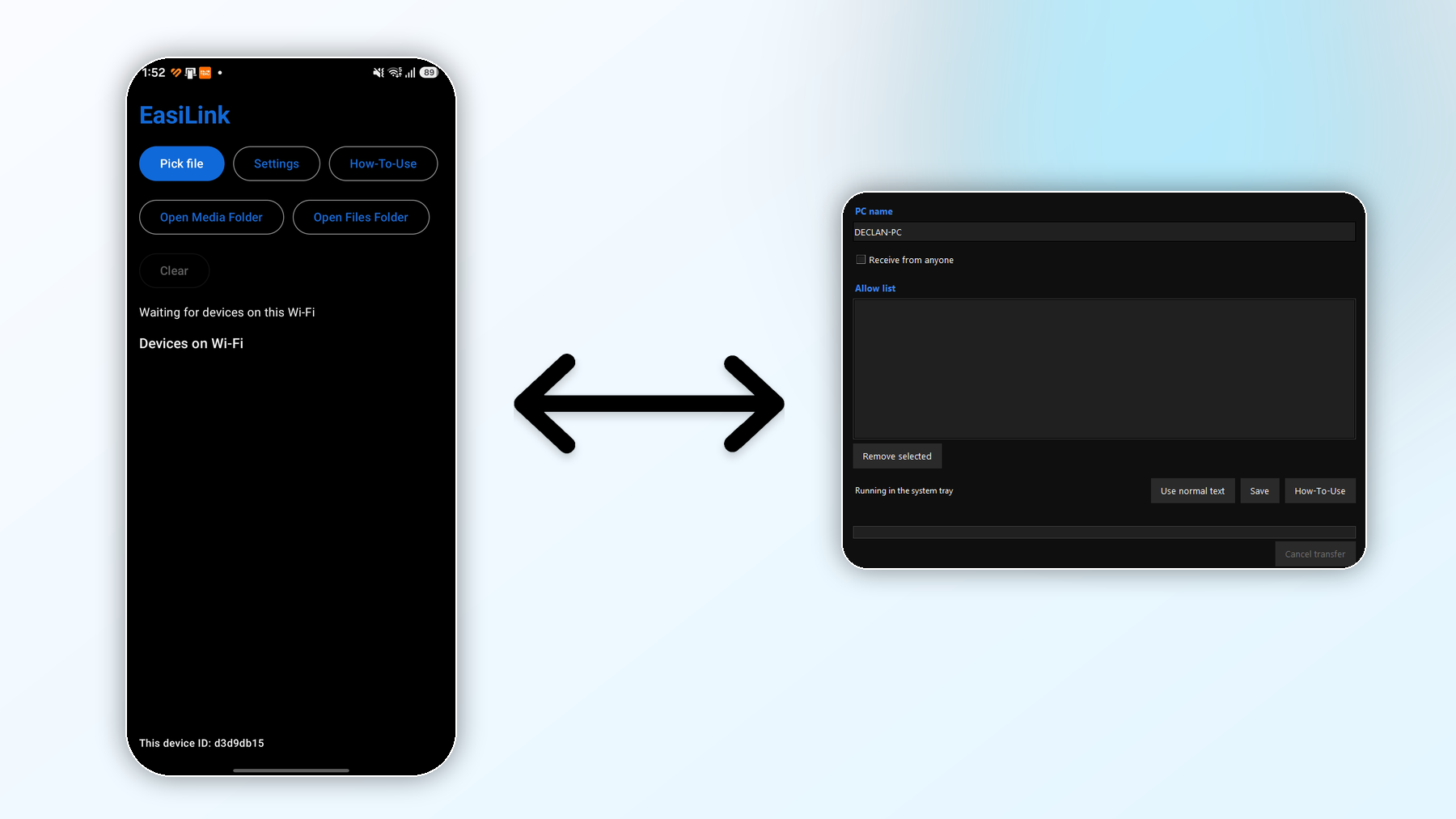
Fast file transfers
Share photos, videos, documents, code files, archives, and more with speed that makes everyday file moving feel effortless.
 EasiLink
Local Wi-Fi file sharing
EasiLink is built for fast, reliable, and secure sharing between your own devices. Send phone to phone, PC to PC, PC to phone, or phone to PC with a clean workflow that saves time every day.
What's new in V4.0
Version 4.0 fixes the mobile file-sending bug that prevented transfers when Always Discoverable was turned off.
Features
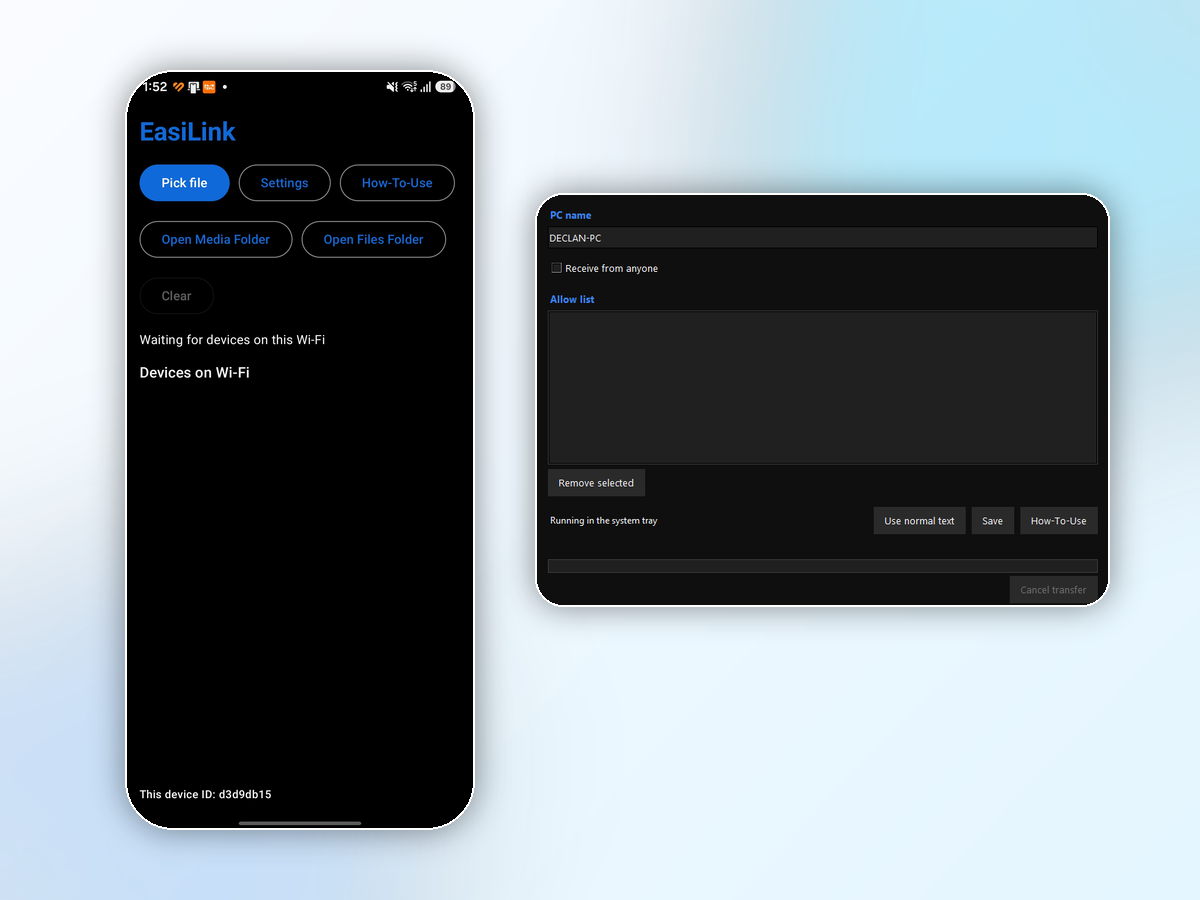
EasiLink gives you a smooth way to send files between all your devices. Set custom device names, pick who you trust, and transfer one file or many files with a workflow that feels quick from start to finish.
Share photos, videos, documents, code files, archives, and more with speed that makes everyday file moving feel effortless.
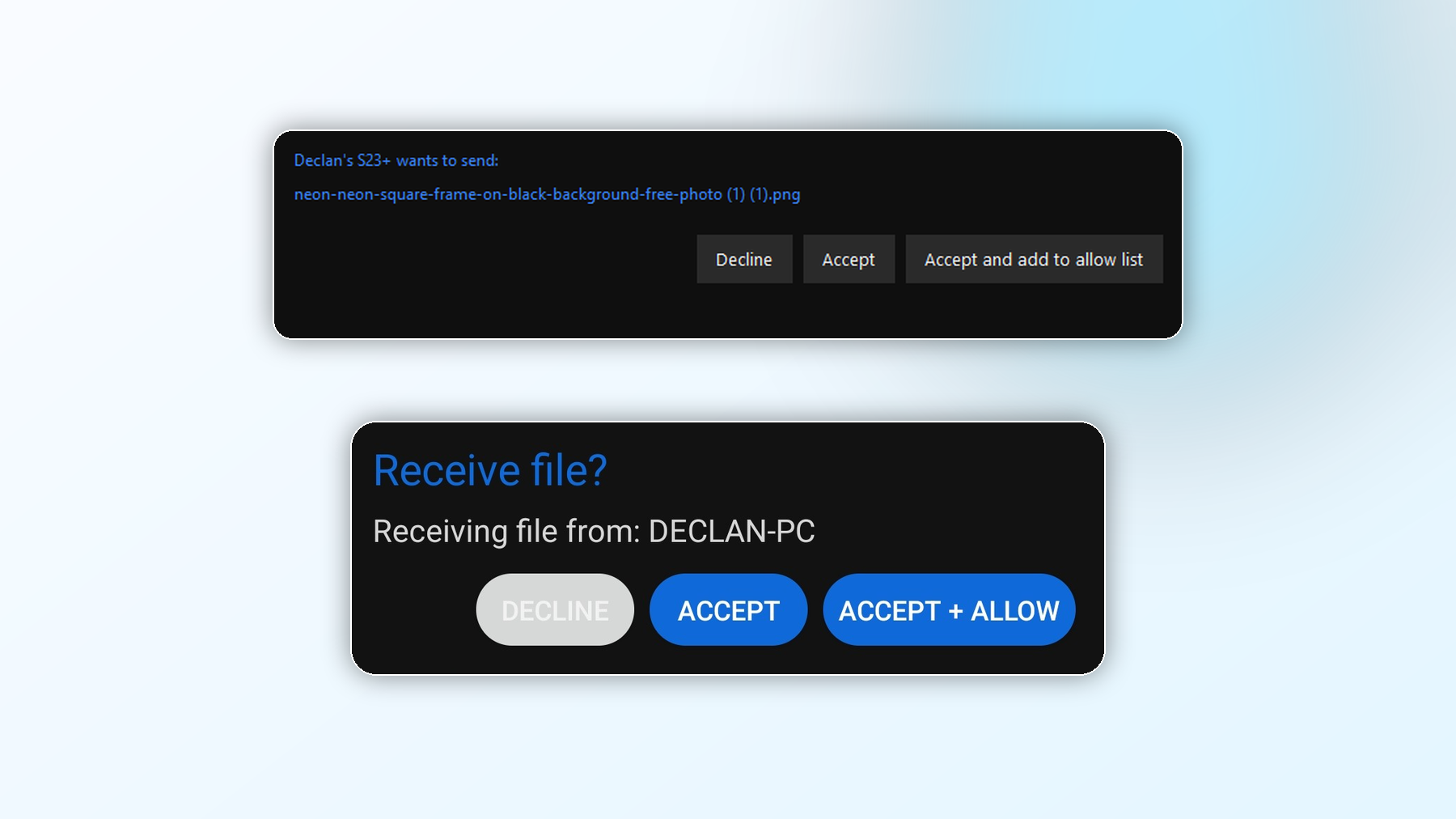
Incoming files show a simple accept, decline, or accept-and-allow choice so you stay in control of who can send to your phone or PC.
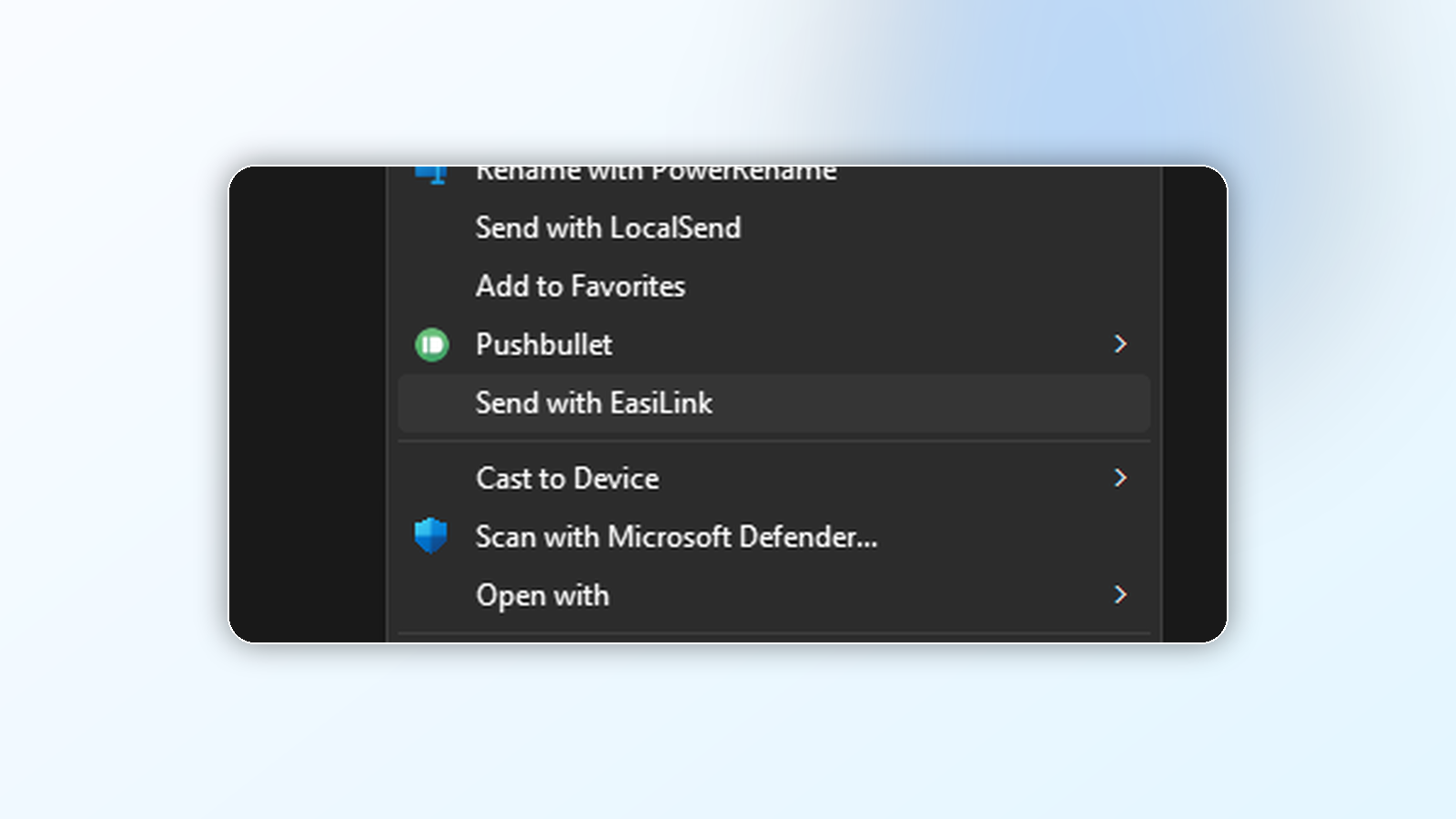
On Windows, right-click a file in File Explorer and choose Send with EasiLink. No opening apps first, no extra steps, just pick a device and send.
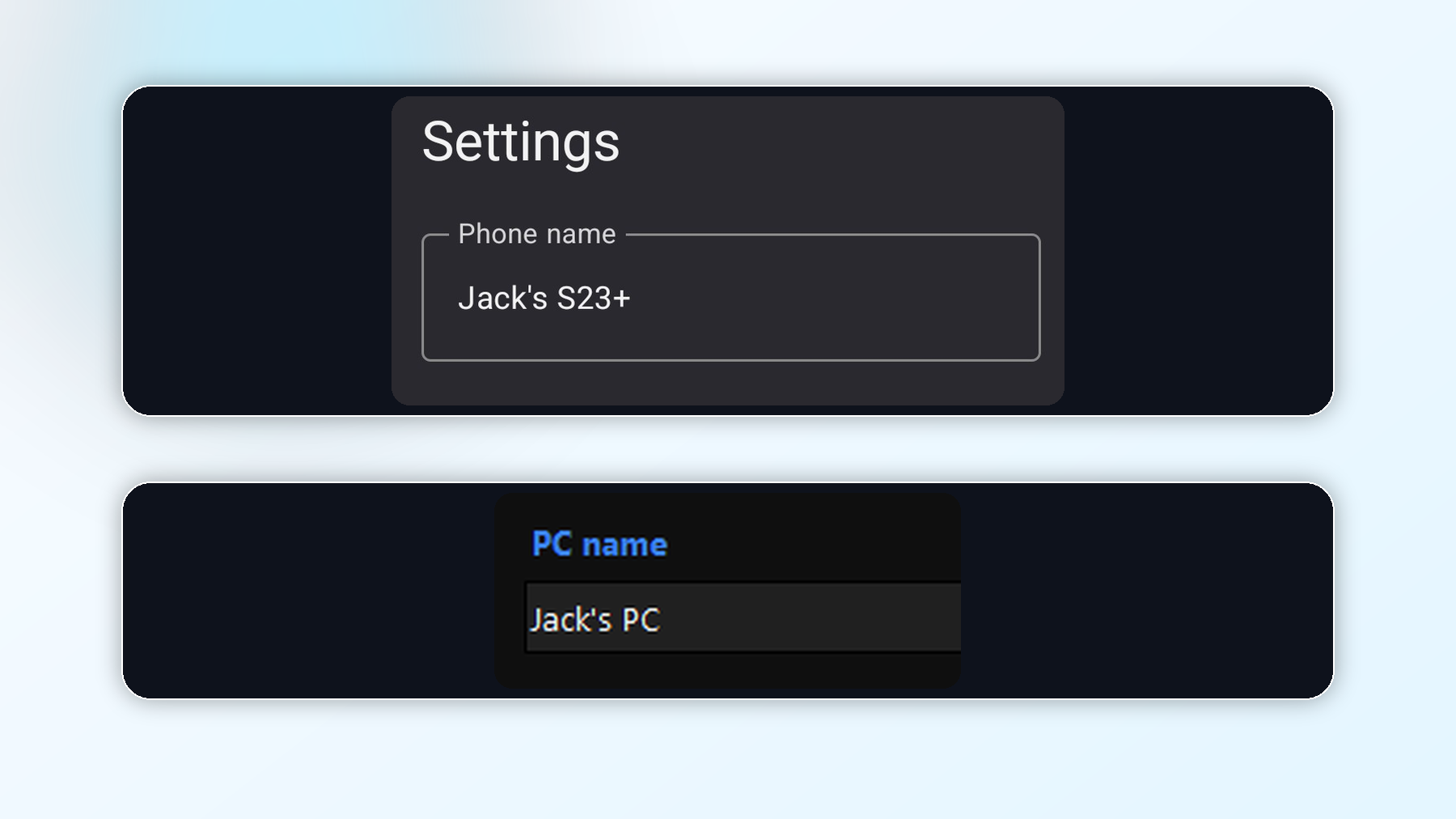
Give every phone and PC a name that makes sense to you, so your available devices list is easy to read at a glance.
How it works
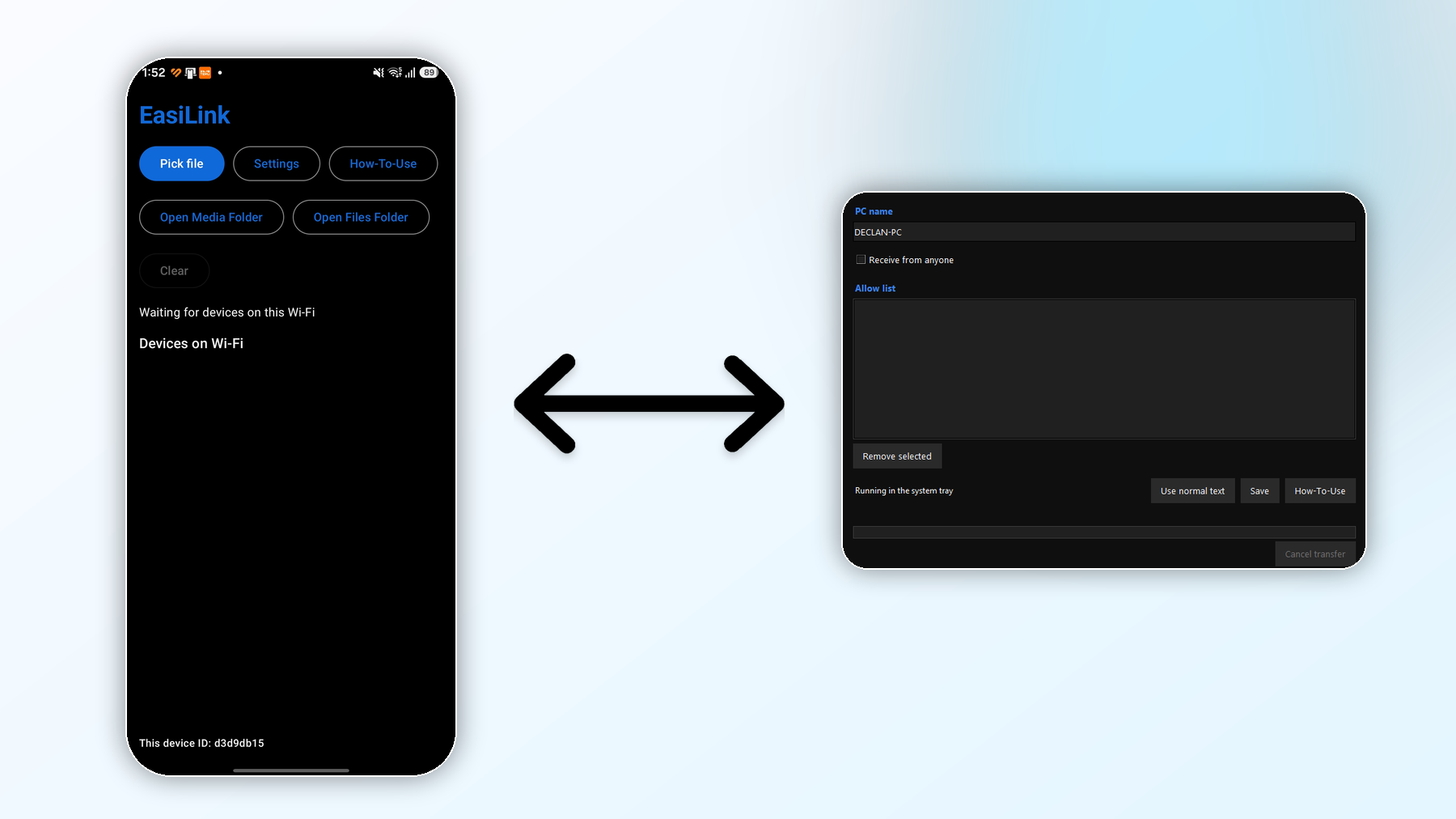
Install EasiLink on your phone and PC, connect to the same Wi-Fi, and send in any direction: phone to phone, PC to PC, PC to phone, or phone to PC. The receiving device shows a clear popup so the transfer stays safe and intentional.
Why EasiLink
EasiLink is designed for people who want file sharing to feel instant. Whether you are sending a video from your phone to your PC, moving work from PC to PC, sharing from PC to phone, or sending phone to phone, EasiLink keeps it quick, reliable, and easy to understand.
Get started